macOS Sonoma
To upgrade your computer to macOS Sonoma, there are several key but relatively simple steps to follow.
1. Connect your computer to power
Plug in your computer to a power source.
2. Shut down your computer
Next shut down your computer by choosing, from the menu at the top-left corner of your screen, > Shut Down.
The Information Services team recently made it possible to upgrade an LCS laptop to macOS Sonoma.
Shutting down and then starting up your computer again ensures that your computer will "see" this new ability to be upgraded.
3. Turn on your computer
Press the power button in the top right corner of the keyboard to turn it on again.
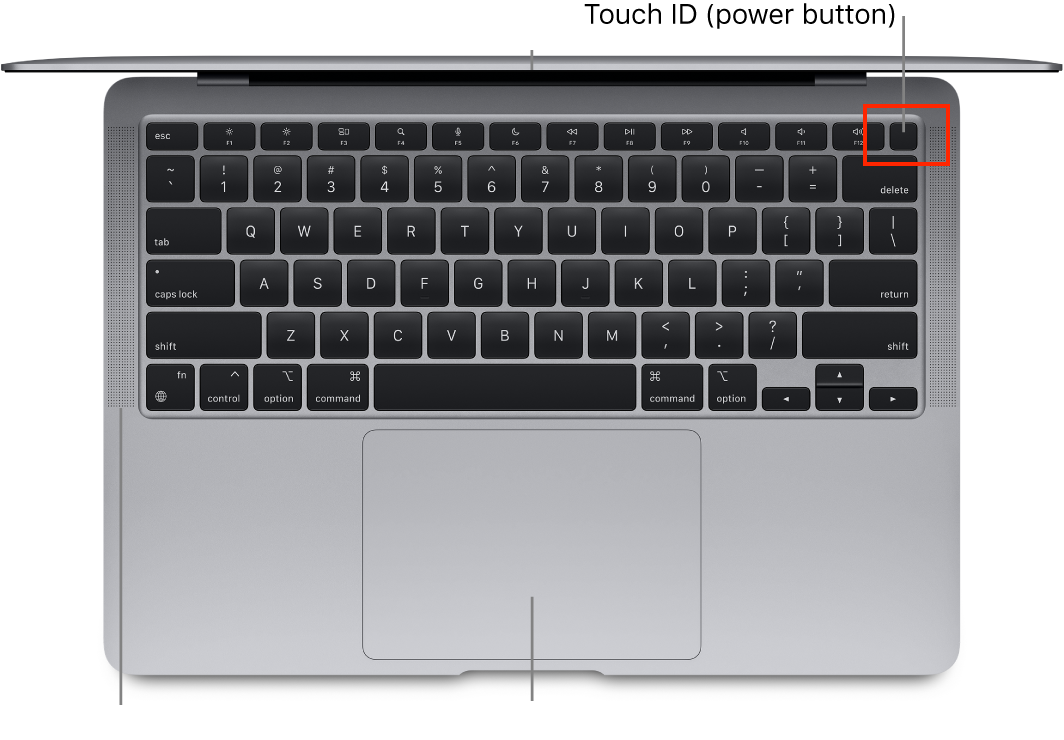
Once your computer has restarted, continue to the next step to upgrade it.
4. Upgrade
Depending on what version of macOS you are currently running, the next few steps may look a little different.
If you are not sure what version of macOS you are currently running, check by selecting the menu at the top-left corner of your screen, and then About This Mac.
Follow this link to upgrade from macOS 12 (Monterey) or earlier.
Follow this link to upgrade from macOS 13 (Ventura).
If you are upgrading from macOS 12 (Monterey) or earlier
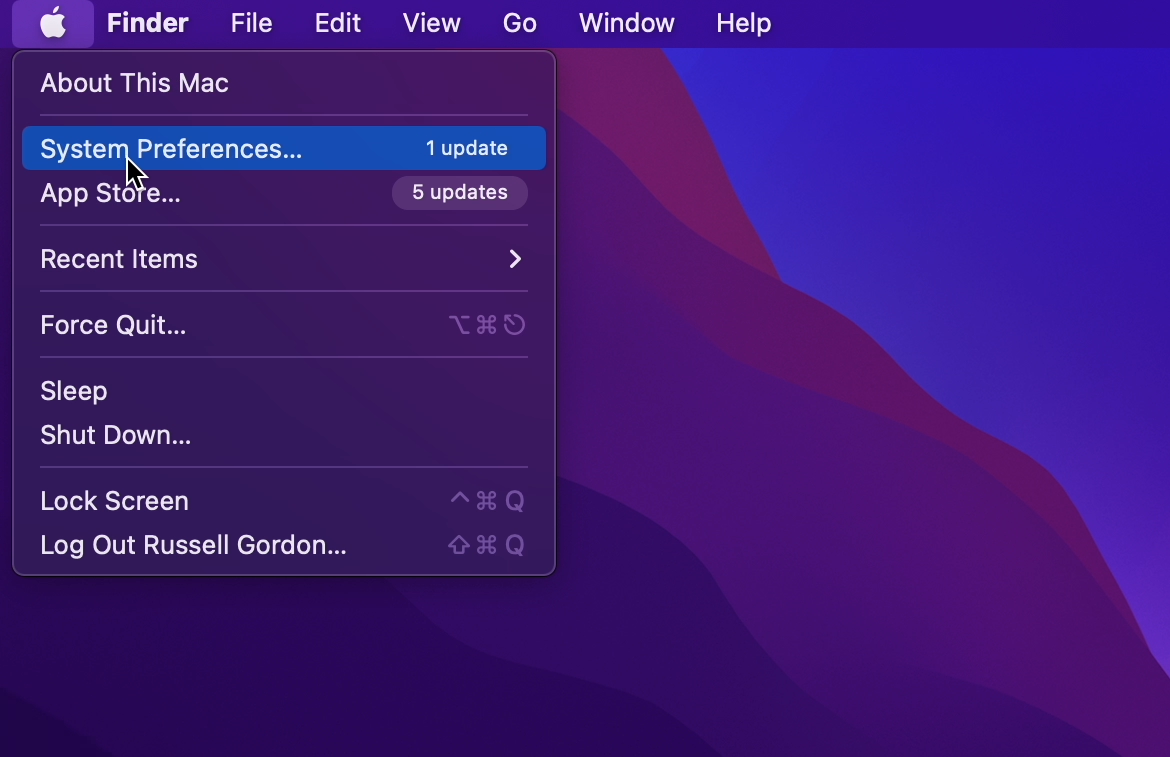
Once your computer has restarted, open System Preferences:
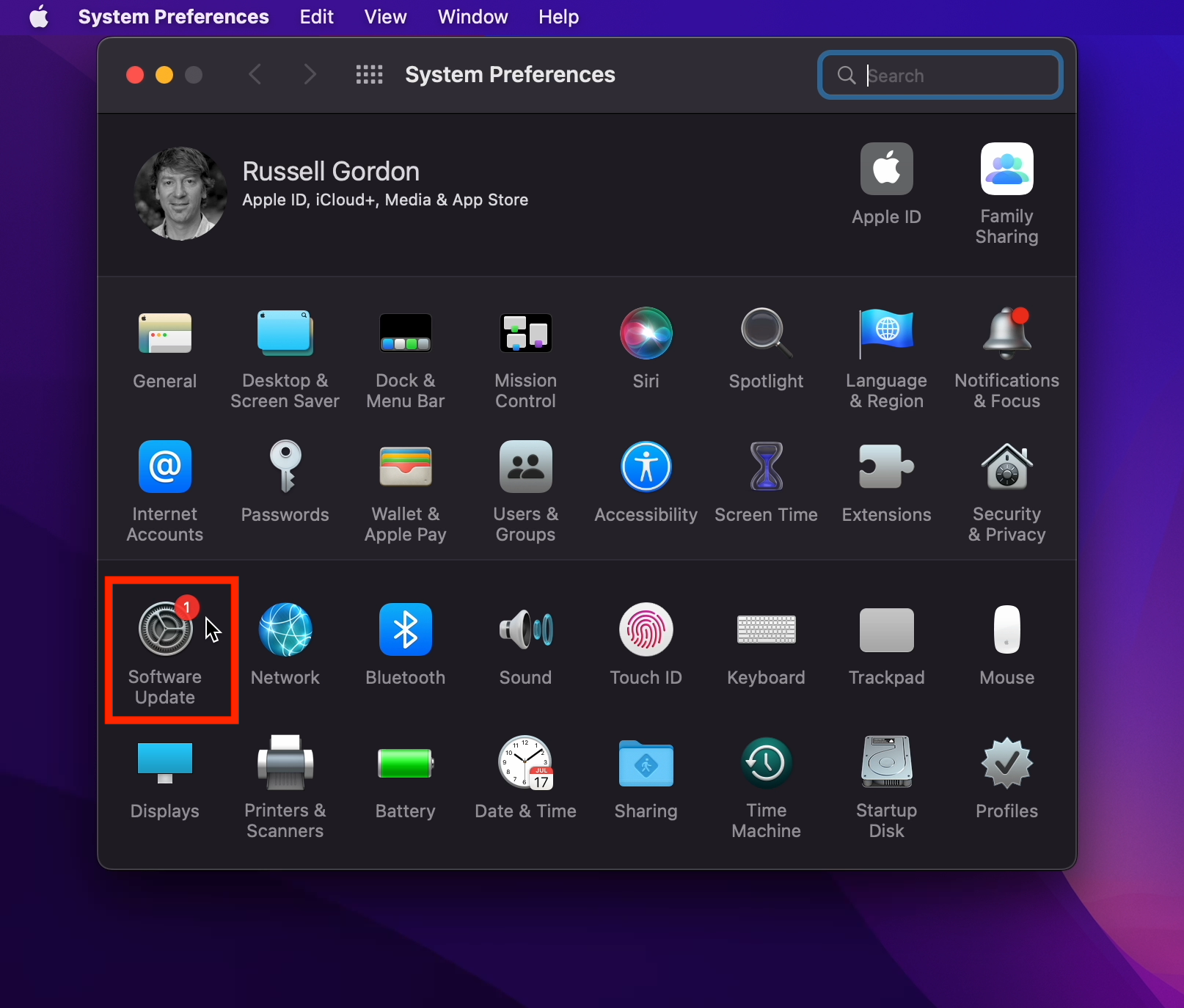
Then, open the Software Update panel:
At first, you may see that your computer is not able to be upgraded:
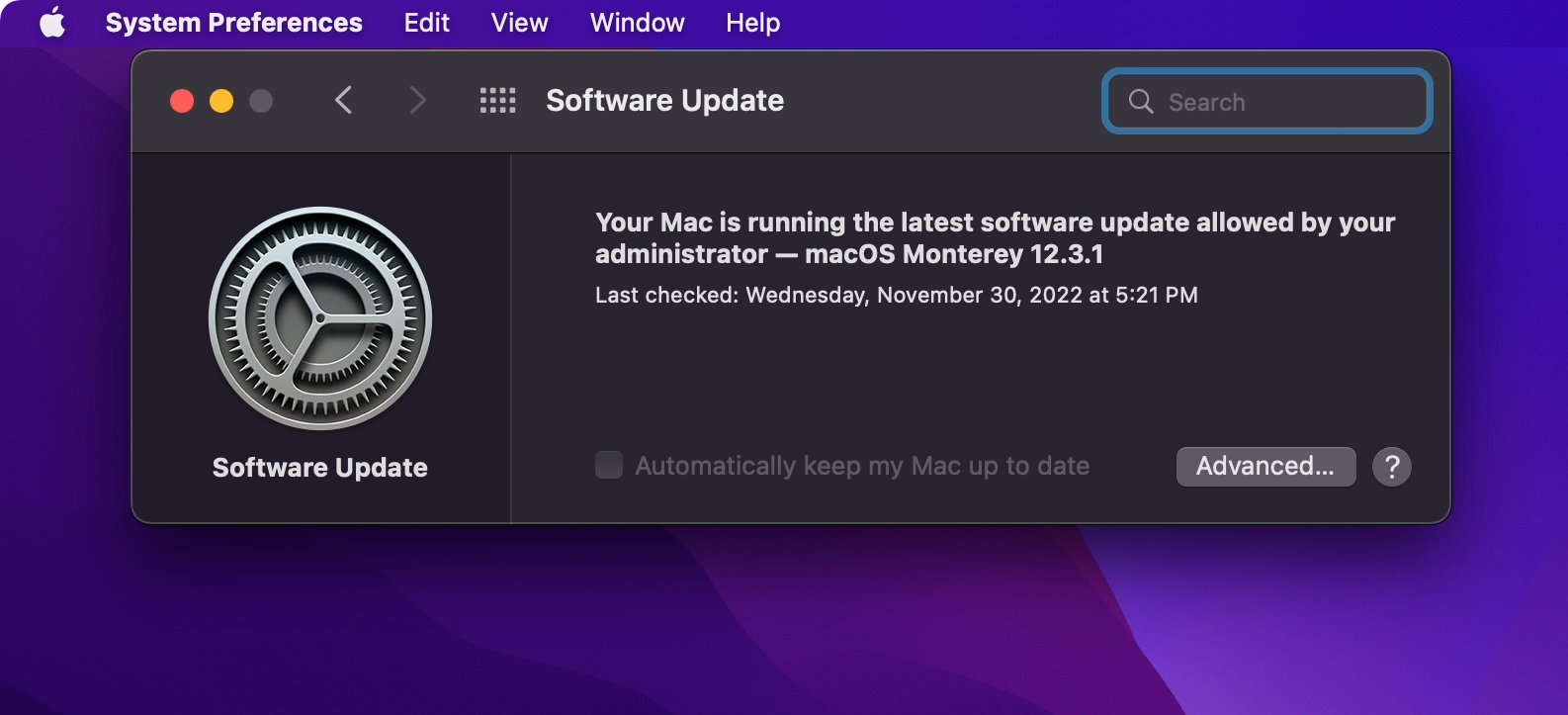
Wait a minute or two. Then you should see a message indicating that you can upgrade to macOS Sonoma.
Press the Upgrade Now button, and:
- Accept the license agreement.
- Provide your system (computer) password.
Depending on the speed of your Internet connection, you may need to wait for some time until macOS Sonoma 14.0 has been downloaded to your computer:
Keep the lid on your computer open while the software is downloaded.
After downloading the upgrade, you will need to... wait some more.
After the software is prepared, you may notice a notification indicating your computer is about to restart.
Allow the restart to happen; the actual process of installing macOS Sonoma 14.0 will now begin.
While the software is installed, your computer may restart several times.
During this process, your computer will typically display a white logo in the middle of a black screen. This is expected behaviour.
If you are upgrading from macOS 13 (Ventura)
Once your computer has restarted, open System Settings:
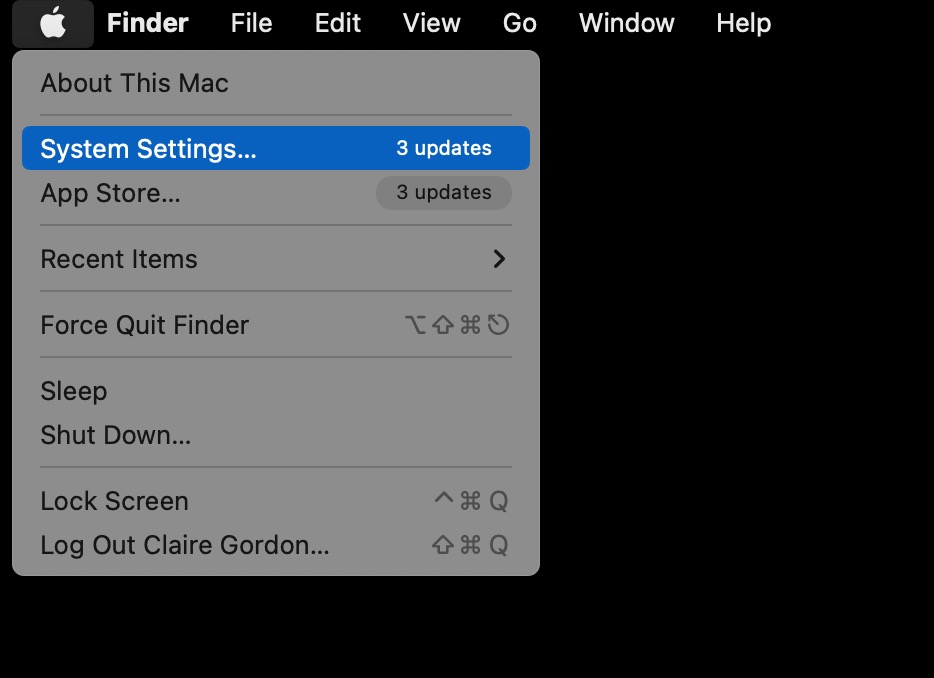
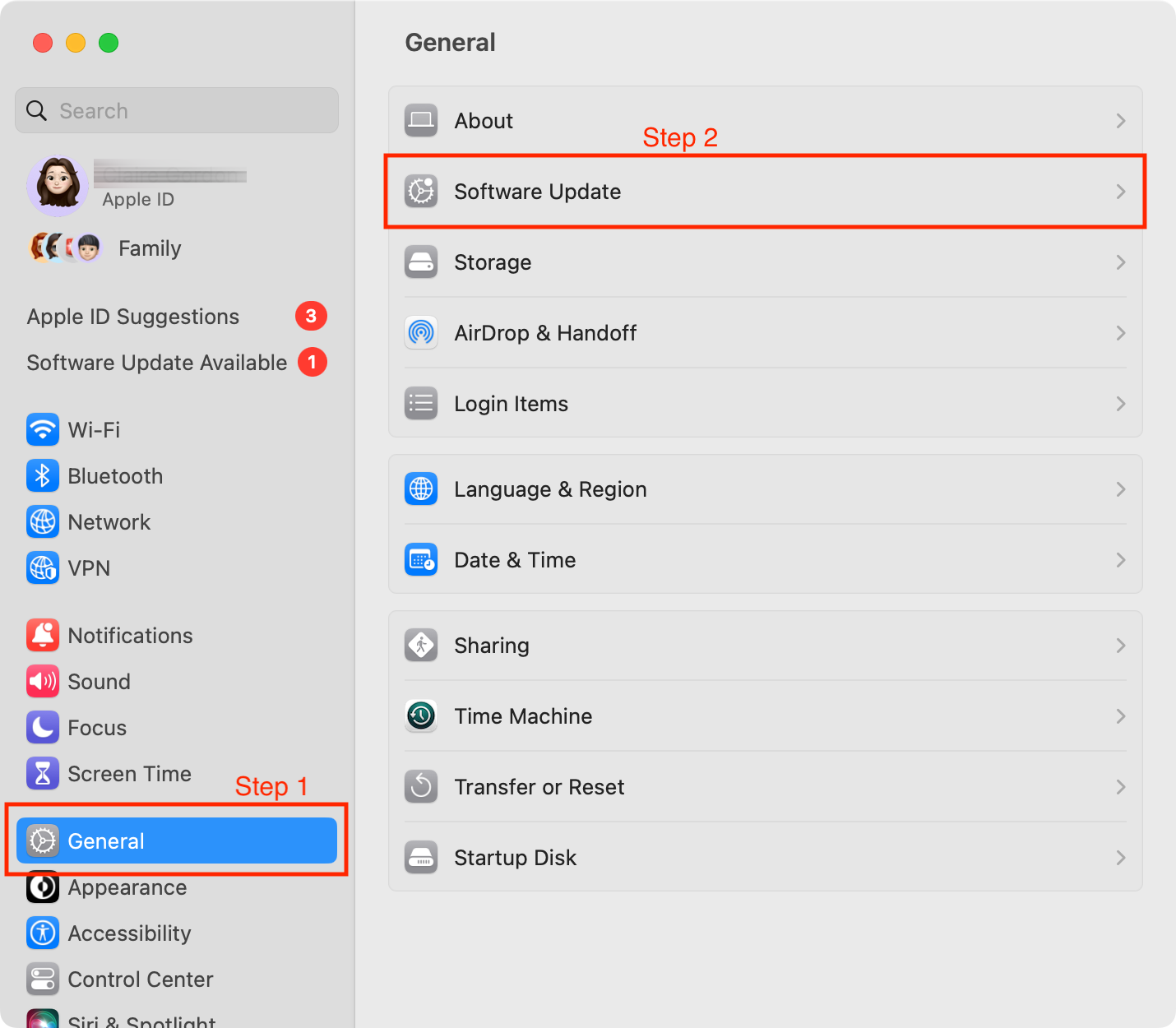
Then, select General, followed by Software Update:
You should then see something like this:
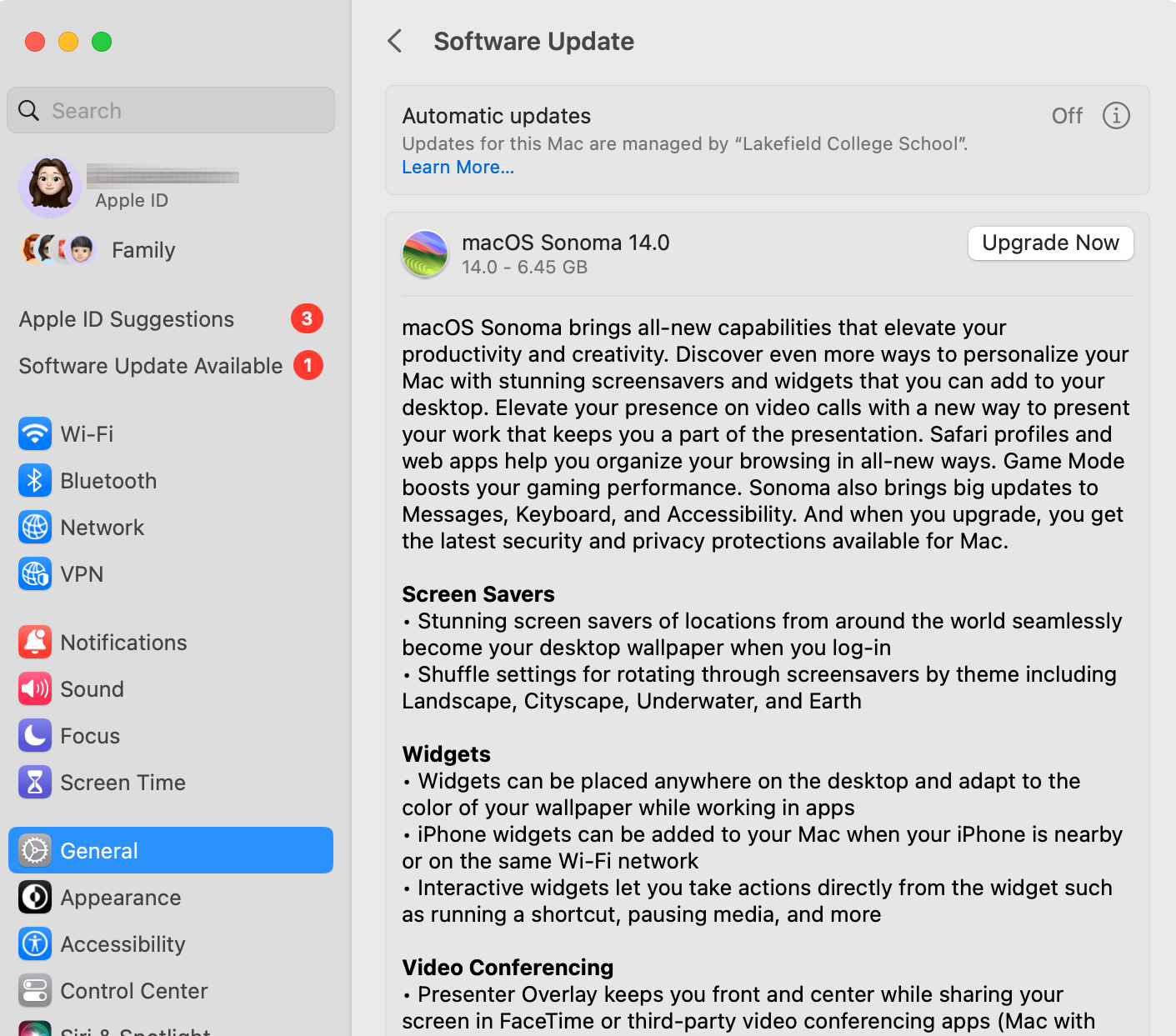
Press the Upgrade Now button, and:
- Accept the license agreement.
- Provide your system (computer) password.
Depending on the speed of your Internet connection, you may need to wait for some time until macOS Sonoma 14.0 has been downloaded to your computer:
Keep the lid on your computer open while the software is downloaded.
After downloading the upgrade, you will need to... wait some more.
After the software is prepared, you may notice a notification indicating your computer is about to restart.
Allow the restart to happen; the actual process of installing macOS Sonoma 14.0 will now begin.
While the software is installed, your computer may restart several times.
During this process, your computer will typically display a white logo in the middle of a black screen. This is expected behaviour.
5. Check that the upgrade completed successfully
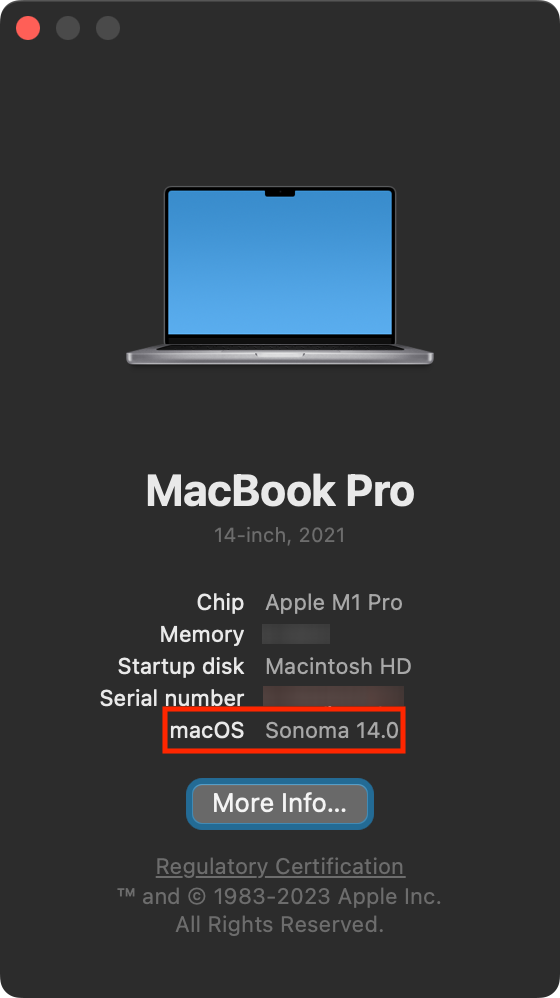
After the upgrade completes, you should see that your computer is now running macOS Sonoma – from the menu at top left, select > About This Mac:
After your computer is upgraded, it begins an optimization process. You may receive a notification about this and may notice that your computer runs just a little more slowly than before. This is a temporary state of affairs. The best way to get past this is to leave your computer's lid open and plugged in to power. After a few hours at most, usually no more than half an hour, the optimization process should complete.